
Product Explainer
A guide to the Amblyotube VR control panel and its features.
Amblyotube (Amlube) is a VR application for Meta Quest that helps users practice lazy-eye (amblyopia) visual training in a more engaging way. It applies separate visual adjustments to each eye while you watch YouTube content, so the weaker eye is encouraged to work while the dominant eye is controlled. It is intended for wellness and educational use and is not a medical device.
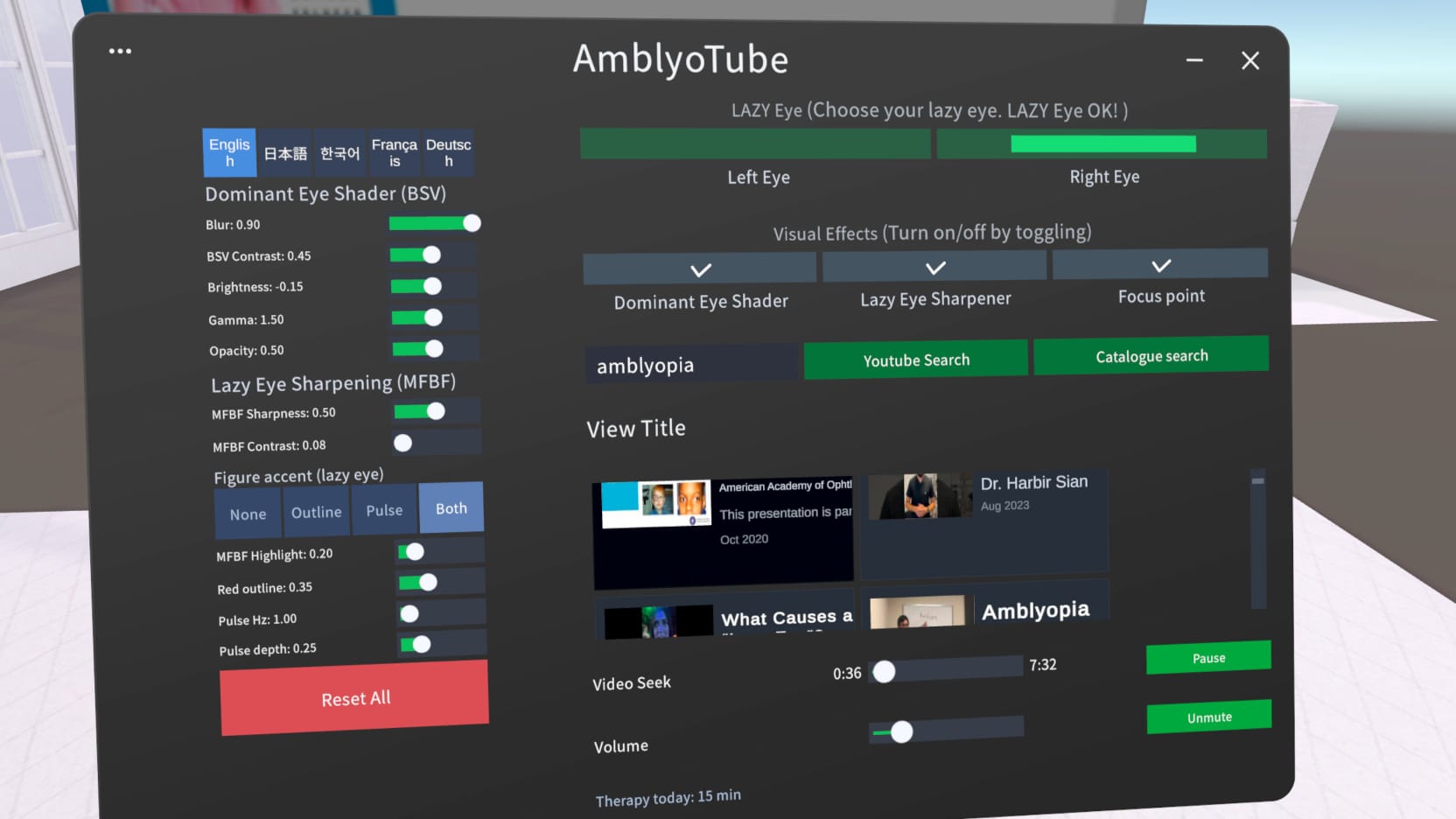
The Amblyotube control panel in VR
A quick summary
Amblyotube combines therapy-style visual training with entertainment: sharpen and enhance the lazy eye (including optional MFBF figure accents and focus cues), suppress the dominant eye with adjustable shading (up to full occlusion), and keep sessions practical with familiar playback controls, reset tools, easy VR navigation, and localized language options.
Lazy Eye Selection and Core Toggles
- Lazy Eye Selection (Left/Right): This is the most critical setting. Users must select which eye is their "lazy eye" so the software can correctly apply sharpening to the weak eye and shading to the dominant one. Selecting the wrong eye can result in training the dominant eye by mistake.
- Dominant Eye Shader Toggle: Located on the left side of the panel, this allows users to turn the shading effects on or off for the stronger eye.
- Lazy Eye Sharpener Toggle: Located on the right side of the panel, this enables or disables lazy-eye processing: MFBF sharpening, contrast/flicker, optional figure accents (highlight, outline, pulse), and related controls for the weaker eye.
- Focus Points (visual effect): Optional therapy fixation overlay in the viewing area. When enabled, it shows the bright magenta lazy-eye cue and the softer dominant-eye cue described under Lazy Eye Sharpener Features—intended to support fusion practice alongside video content.
- Language settings: New language options for the app interface so setup labels, toggles, and prompts are easier to follow in your preferred language during sessions.
Dominant Eye Shader Features
This section manages partial occlusion, which forces the lazy eye to work without completely blocking the dominant eye.
- Opacity Slider: Users can adjust how transparent or dark the dominant eye shader is. Setting the opacity to zero makes the screen fully black, allowing the app to act as a patching aid.
- Blur Slider: Adds a blurring effect to the dominant eye's view.
- Contrast, Brightness, and Gamma Sliders: These allow for fine-tuning the visual quality of the dominant eye's feed to ensure the lazy eye is doing the primary "hard work" of focusing.
- Full Occlusion Option: Users can reduce dominant-eye visibility all the way to full black to simulate patching while still using the same VR workflow.
Lazy Eye Sharpener Features
This section uses AI-driven visual processing (MFBF-style treatment) to stimulate the weaker eye and encourage both eyes to cooperate. Figure accents and focus cues work together with the existing sharpening and contrast/flicker sliders for a richer training environment.
- Sharpening Slider (MFBF sharpness): Enhances the lazy-eye feed with emphasis on human figures (faces and bodies) in the frame rather than indiscriminately sharpening the entire picture.
- Flicker/Contrast Slider: Increasing contrast strengthens the flicker rhythm—a strong attention draw because the brain tracks motion and light change, helping the lazy eye stay engaged. This continues to pair with the accent and pulse options below.
- Figure Accents (MFBF mode): AI detects people in the video and applies lazy-eye-only aids on top of them: Highlight (soft yellow–green glow so figures pop without tinting the whole scene), Outline (red silhouette/edge so shape boundaries are easy to lock onto), and Pulse (a rhythmic “breathing” brightening and dimming of the highlight or outline so motion catches attention without constantly moving manual sliders).
- Advanced pulse controls: Fine-tune the breathing effect: Pulse Hz sets how fast the rhythm runs (slow, calm breathing vs. quicker flicker), Pulse Depth sets how strong the swing is between on and off states, and Accent Modes switch among None, Outline, Pulse, or Both (outline and highlight pulse together in the same rhythm).
- Magenta focus cue (therapy / fusion): With Focus Points enabled, a bright magenta circular cue appears for the lazy eye—magenta is uncommon in natural footage, so it stands out against skin tones, foliage, and sky. The dominant eye sees the same geometry in soft neutral grey so it stays in the background. The goal is to give the brain a consistent anchor for merging (fusing) input from both eyes, supporting neuroplasticity alongside your chosen video.
Video and Panel Controls
- Search Box: Allows users to search for any content on YouTube to use for their training.
- Playback Controls: Includes standard buttons for Play/Pause, Mute/Unmute, and a Seek bar to scroll through the video.
- Catalog/Scrolling Menu: Provides a list of default or recently searched videos.
- Panel Manipulation: Because it is a VR app, users can grab the panel to resize it or move and rotate it to a comfortable position within their virtual space.
- Reset Shaders: Reset All instantly returns visual settings to defaults when users want a clean starting point.
- Back to Control (Wrist Shortcut): A wrist-accessible shortcut teleports users back to the control panel, making navigation in VR easier during sessions.
Video demos
Watch the demos below for an overview, the full training flow, and detailed control panel behavior.
Amblyotube overview
Introduction to Amblyotube on Meta Quest: what the app does for lazy-eye (amblyopia) practice with YouTube in VR and how sessions fit into a wellness workflow.
Amblyotube product explainer and workflow demo
Overview of the Amblyotube concept, how lazy-eye selection works, and how the control panel settings are combined during real viewing sessions.
Amblyotube control panel deep-dive demo
Short walkthrough of dominant-eye shading, lazy-eye enhancement (including MFBF accents and focus cues), playback controls, and practical adjustment flow for comfort and training consistency.
Usage note
The software is intended for users 13 years and older. Training should be limited to 30–40 minutes per day, with a maximum of one hour to prevent eye strain from the VR headset.
For wellness and educational use only—not a medical device, cure, or substitute for professional eye care. See our Disclaimer for full details. Full disclaimer